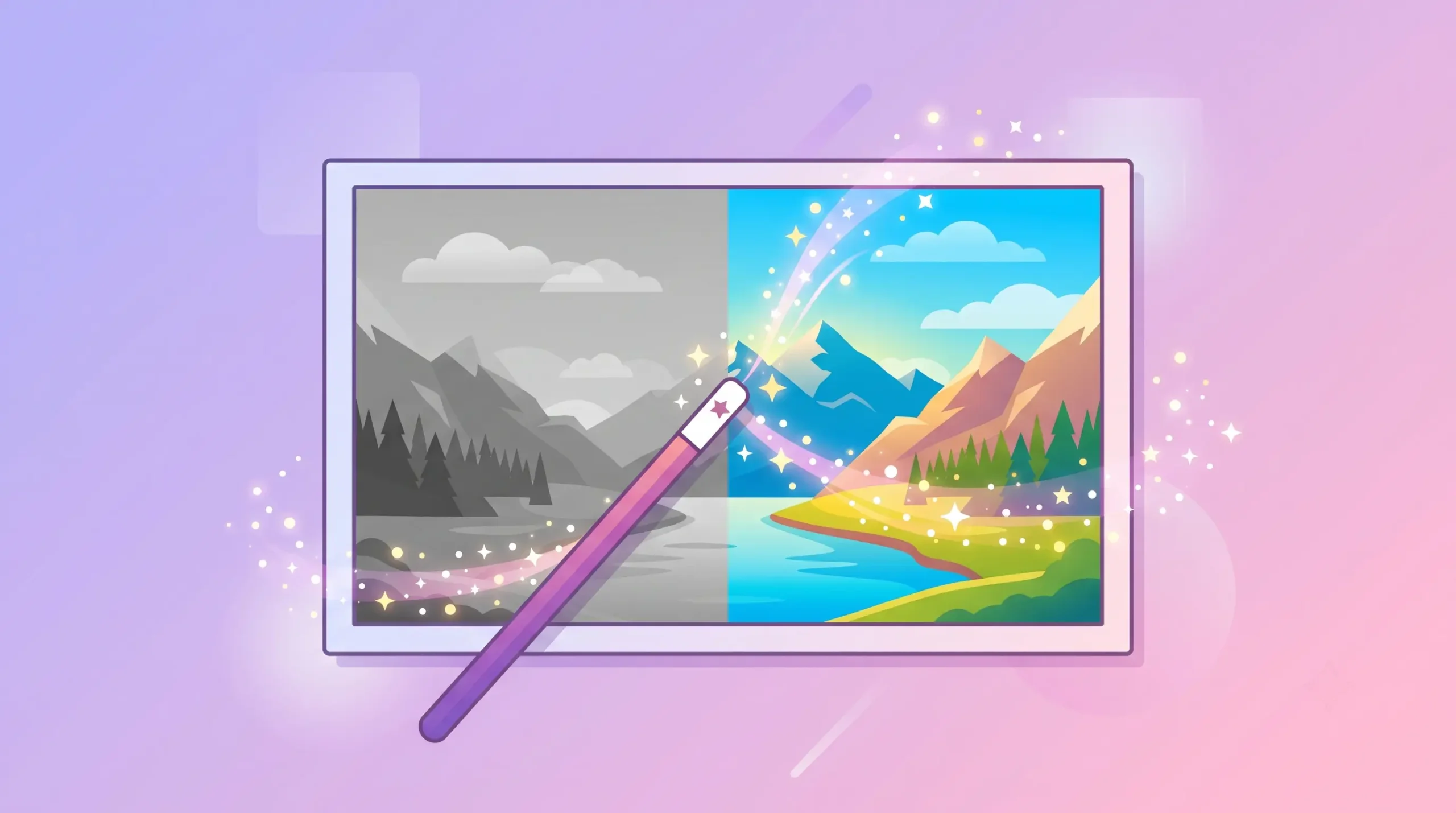

I’ll admit something — I have zero design background. No Photoshop training, no fancy design degree, nothing. And yet somehow my Instagram photos and blog images look decent enough that people ask what editing app I use. The honest answer? A handful of free AI tools that do most of the thinking for me. If you’ve ever taken a perfectly good photo and then ruined it trying to “fix” it in some clunky app, this list is for you. These tools don’t need a manual, and most of them get you a solid result on the very first try.
Why AI Photo Editing Actually Works
A few years ago, “AI editing” mostly meant weird filters that made everyone look plastic. That’s changed a lot. Now these tools can remove backgrounds cleanly, fix lighting that looked hopeless, and even fill in missing parts of a photo all without you touching a single slider. The best part is you don’t need to know what “clipping mask” or “curves adjustment” even means. You just tell the tool what you want, or click a button, and it handles the technical part.
1. Canva (Magic Studio Tools)
If you only try one tool from this list, make it Canva. It’s not just a design app anymore — the AI features inside it (background remover, Magic Eraser, photo enhancer) turn it into a full editing suite on its own. I use the background remover constantly for product photos, and it works in about two seconds, no cutting or masking required.
Good for: Background removal, quick touch-ups, social media graphics
2. Remove.bg
Sometimes you just need one job done really well, and Remove.bg does exactly that — strips the background off a photo instantly. Upload an image, wait a few seconds, download it with a transparent background. That’s the whole process.
Good for: Clean background removal, nothing fancy needed
3. Fotor
Fotor feels like the middle ground between “too simple” and “too complicated.” It has one-click AI enhancement that fixes lighting, color balance, and sharpness automatically, plus a portrait retouching tool that smooths things out without making people look fake or plastic-y.
Good for: Quick photo fixes, portrait retouching
4. Adobe Photoshop Express (Free Version)
Yes, it’s Adobe, and yes, there’s a free version that’s actually useful. It carries over some of the AI magic from full Photoshop — like smart auto-adjustments and object removal — but in a stripped-down, beginner-friendly app. If a random tourist walked into your vacation photo, this is what removes them.
Good for: Removing unwanted objects or people from photos
5. Pixlr
Pixlr sits somewhere between a basic photo app and a full editor, and its AI background generator is honestly kind of fun to play with. You can swap a boring background for something more interesting in seconds, which is great for product photos or thumbnails that need a bit more personality.
Good for: Creative backgrounds, thumbnail images
6. Lensa
Lensa became known for its AI avatar generator, but it’s also solid for everyday portrait editing — skin smoothing, lighting fixes, and subtle enhancements that don’t scream “filtered.” It’s more mobile-focused, so it’s a good option if you’re editing straight from your phone.
Good for: Portrait editing on mobile, AI avatars
A Quick Word of Caution
AI editing is powerful, but it’s easy to overdo it. Smoothing skin too much or brightening a photo too aggressively makes it obvious something’s been edited — and not in a good way. A good rule I follow: if you can immediately tell a photo was edited, you probably went one step too far. Aim for “looks naturally good,” not “looks like a video game character.”
Final Thoughts
You genuinely don’t need design training to make your photos look sharp anymore. Pick one tool from this list — Canva if you want an all-in-one option, Remove.bg if you just need backgrounds gone — and try it on a photo you already have sitting in your camera roll. You’ll be done in under two minutes.
Which photo editing struggle do you deal with the most — lighting, backgrounds, or something else? Drop it in the comments,s and we’ll cover it in a future post.
Frequently Asked Questions
Most of these tools have a solid free plan that covers everyday editing needs, but they do limit things like resolution, number of exports per day, or advanced features. For casual use — cleaning up a few photos a week the free versions are usually more than enough.
Not at all. That’s the whole point of AI editing tools. Most of them work with a single click or a short text prompt, so you don’t need to know anything about layers, masks, or color grading.
Remove.bg is the fastest and simplest option if background removal is all you need. Canva works well too, especially if you’re already editing other parts of the image at the same time.
Yes, tools like Fotor and Adobe Photoshop Express have one-click enhancement features that can noticeably improve lighting, contrast, and color balance, even on older or poorly lit photos.
It can, if you push the settings too far. The safest approach is to make small adjustments and check how natural the result looks before applying heavier effects like skin smoothing or background changes.
Yes, most of them — including Canva, Lensa, and Pixlr — have mobile apps or mobile-friendly websites, so you can edit photos directly from your phone without needing a computer.
Disclosure: This post is for educational purposes. Daily Grids may earn a commission from affiliate links on this site at no extra cost to you. See our Disclaimer for details.
Discover more from Daily Grids
Subscribe to get the latest posts sent to your email.